Multilingual SharePoint, Without the Headaches
Making SharePoint multilingual isn’t just about turning on translation—it requires planning, governance, and clear workflows to avoid inconsistent content and user frustration. Without the right structure, organizations quickly face duplicated effort, broken experiences, and loss of trust in multilingual content. By designing with language in mind and embedding translation into everyday publishing, SharePoint can become a reliable, scalable multilingual platform.
In brief
Choose the site's base language, supported languages, and translation scope before building publishing workflows, because those choices affect redirection, search, and ongoing workload. Manage interface translations separately from frequently changing content, assign reviewers, maintain glossaries, provide secure translation methods, and track language versions when their source material changes or is removed.
Making SharePoint truly multilingual is rarely as simple as “turn on translation.” Many organizations discover this the hard way—after users complain about missing content, mixed-language interfaces, search results that mix languages, or translated pages that quietly fall out of sync with the original.
You also have to realize the level of effort, not just on IT but throughout the organization. One Director of Internal Communications once told me “Upper management decided we should support all 8 languages of the countries where we operate. No matter how automated it is, that means I now have to manage 8 times as many pages and documents, most of it in languages I can’t even read, and handle a lot more complaints. Each extra document, even if it’s a translation, brings extra workload”
The good news is that a lot of these problems are avoidable. Whether you rely on SharePoint’s out‑of‑the‑box multilingual features or extend them with PointFire 365 and PointFire Translator Express, the same underlying principles apply. Multilingual SharePoint works best when it’s planned deliberately, governed consistently, and supported by clear roles and workflows.
Let’s walk through what that actually looks like in practice.
Start With Planning, Not Translation
One of the most common mistakes is starting with translation before deciding how multilingual content should behave and be managed. SharePoint gives you multiple ways to present content in different languages, but each one comes with trade‑offs.
Early on, you should decide how pages will be redirected by language. For most organizations, SharePoint’s native multilingual page method works well: a single source page in the base language of the site, with linked language versions that SharePoint automatically shows based on user preferences, or menu selections. However, in environments with strict language requirements, one of the other PointFire page redirection methods may be more appropriate.
It’s also crucial to decide, upfront, what actually needs to be translated. Not every document, page, or time-limited announcement deserves the same treatment as a policy, fresh news article, or homepage. Being selective keeps multilingual SharePoint manageable instead of overwhelming.
Do you want machine translation of pages? SharePoint doesn’t have it, you’ll need a different solution. Do you want notifications? SharePoint lets you designate a translator to be notified, but they will get a lot more notifications than they expected or want, and there is no way to turn them off. Seriously, you delete their name, turn off the feature, yet the notifications keep coming. You may want to set up your own custom notifications instead.
Do you want automation? A lot of people are keen to automate early on, but it may be best to let content authors decide when it’s time to translate and you may want check the translation before publishing. The trade-off between automation and control depends on the library and existing processes.
Planning also means thinking beyond pages. Navigation, metadata, content types, and even global menus all play a key role in how multilingual experiences feel to end users. If translating those elements isn’t planned early and managed centrally, they can become painful retrofits later.
Compliance, standards, timelines
Your project is at the intersection of legal, regulatory, and organizational requirements. Before you start, you need to know why you are making sites multilingual. Is it a voluntary decision ingrained in the way you already operate, or part of a transition? Are you subject to legal or regulatory or contract requirements? If so, what is the standard that you have to meet? The standard of translation for legal documents is very different from the standard for announcing a retirement party.
Certain SharePoint features can not be easily translated out of the box. Do you find a workaround, tolerate that it won’t be translated, or block their use in the original language? Laws in Canada often have a strict standard to meet and inspectors who will return to determine if you comply. Is there a deadline, a launch date for the new intranet? Or a gradual rollout for sites of different priorities?
Is it on demand, as people request it? Bad idea. Don’t put the onus on minority language speakers to trigger the process, but do provide a sense of certainty to staff that if they set your language to one of the supported ones, they know exactly what to expect. I have seen many projects fail because setting your preferred language meant that you didn’t get complete or authoritative information, so all the employees switched back to English so they wouldn’t be left behind.
Governance Is What Makes Multilingual SharePoint Sustainable
Across Microsoft guidance and enterprise experience, one theme comes up consistently: multilingual SharePoint fails without governance.
Governance doesn’t have to be heavy or bureaucratic, but it does need to be explicit. Someone needs to own content per language, not just per site. Clear rules should exist for who initiates translations, who reviews them, and when translated content can be published, and whether the original is published at the same time. Similarly for documents.
Similarly for things like content types, site columns, managed metadata, global and hub navigation, and Viva Connections, or whatever it is calling itself today. There was a time when language was a regional responsibility, where it could be left up to them. But with so much of the structure of the information architecture and of the user experience managed centrally, language is now a headquarters issue.
This becomes especially important as content changes. Source pages evolve, documents get updates, and navigation shifts. Without a governance model that defines how those changes ripple through translated versions and across sites, content quickly drifts out of alignment and users lose trust in what they’re reading.
It’s useful to consider glossaries, either one used by those who translate or check translations, or one in the translation software you are using. There are certain terms where you want to translate a certain way, for consistency, and some trademarks you don’t want to translate. Who owns and maintains the glossary? Is it one central one, or per hub or site? How do they get the “official translations” in all the languages you will support? What happens to existing translations if you decide to change the glossary?
Multilingual governance also needs to align with broader Microsoft 365 governance—Groups, Teams, permissions, retention, and compliance rules don’t suddenly stop applying just because content is in more than one language. Typically translations should follow the same rules, but you will also need translation-aware rules.
Design Your Information Architecture With Language in Mind
Many multilingual issues are blamed on translation tools when the real culprit is information architecture.
Some design choices are effectively permanent. For example, a SharePoint site’s default language cannot be changed after creation. That single fact alone makes early planning critical, especially in multilingual organizations. If you use SharePoint’s native multilingual page publishing, translating a page that is not in the base language is not an option.
Consistent metadata and content types are equally important. They ensure that search, filtering, and aggregated web parts behave predictably across languages. Relying on folders, language-specific columns, or ad‑hoc conventions to manage language almost always breaks down at scale.
Do you want search to find everything, or just documents in the user’s language? Do you want searchable metadata and refiners to be translated or in the original language? These are not automatic, often not easy, and PnP Modern Search is your friend in this. Just remember that SharePoint search’s language codes are not quite the same as SharePoint’s, and that it will not translate the search query.
Navigation deserves special attention as well. Global and hub navigation should be translated centrally in all the languages in which they might appear, and maintained carefully. Moving or copying translated pages or news items without understanding how SharePoint links language variants can quietly break language switching and filtering, often without obvious warnings, as can deleting pages but not their translations.
If you are using site templates, there are several varieties, and all of them have shortcomings when it comes to language. Contact me for a guide to overcoming the language gaps of different site template methods.
If you move or replace pages, or change their metadata, consider what this will do to the translations. If you archive or delete them, make sure you get the translations too. It’s not automatic.
All of this requires deep expertise to do it completely. I once heard a very competent consultant tell her clients that predicting what language a page will display in is not possible, they have to accept that the language of display will sometimes be wrong. It’s true that there are many settings and many factors at play, but what you have to resign yourself to is not that it’s random, but that you will have to learn all those settings and help users get the user experience they need.
Did you know that all SharePoint sites are created with 50 alternate languages already activated, and about a third of the column names and navigation already translated? Before you even lift a finger to define your multilingual strategy, users whose language differs from the base language are already looking at a dog’s breakfast of half-translated interfaces. So one of your first tasks is to turn off all the languages that you don’t intend to support.
Clear Roles Prevent Everyday Friction
Multilingual SharePoint runs smoothly when responsibilities are clearly delineated.
Site owners and SharePoint experts should own the system: deciding which libraries are multilingual, setting policies, configuring language filtering, and translating structural elements like navigation and site columns. They’re also the right people to deal with complex scenarios, such as pages that aggregate content across sites or require advanced filtering logic by language.
Content authors, on the other hand, should focus on content. Their responsibilities are simpler but no less important: setting the correct language on pages and documents if required, following the agreed publishing workflow, and initiating translation when required. Authors should avoid mixing multiple languages on a single page—SharePoint simply doesn’t work that way, and doing so undermines the entire multilingual model. Of course, PointFire 365 does support this but you need to use this capability sparingly to avoid extensive re-training of content authors.
Read‑only users benefit from training too. When users understand how language preferences, filtering, and toggles work, they’re far less likely to assume something is “missing” when it simply hasn’t been translated yet, or they have misunderstood language settings.
Language Filtering Is Powerful—And Easy to Misuse
Language filtering is something SharePoint can do, sometimes automatically, but it needs to be applied intentionally.
Filtering web parts based on page language is usually the most reliable approach. It ensures that what users see stays consistent with the language of the page they’re reading. That consistency quickly builds trust. The problem is that only a couple of web parts, including the News webpart, filter by language automatically in some cases, while most of them do not. Someone has to figure out how to do the filtering.
The Managed Property DetectedLanguage can be useful in specific cases, especially when authors forget to set item language, but it’s not a silver bullet. It’s not immediate, it doesn’t use the same language codes, and it’s not always accurate. In more complex scenarios—such as dashboards, portals, or news rollups—it’s often clearer to create language‑specific pages rather than relying on increasingly complex filtering rules.
Separate the UI Translation From Content Translation
A subtle but important distinction is the difference between translating the interface and translating content.
UI elements—navigation labels, column names, choice values, content types—should be translated prior to launch by experienced site owners or SharePoint experts. These translations typically change when structure changes, not when individual content is updated, and they often require careful coordination and approval to be consistent from site to site.
You also must realize that not all SharePoint UI elements easily support multilingual environments. Some are hard to find, like translations in the Content Type Gallery, some require tricks, like Hub names or sensitivity labels, some are very slow to propagate, like global navigation, and some aren’t supported out of the box at all, like choice columns and folder names. People who know how to do it all are hard to find.
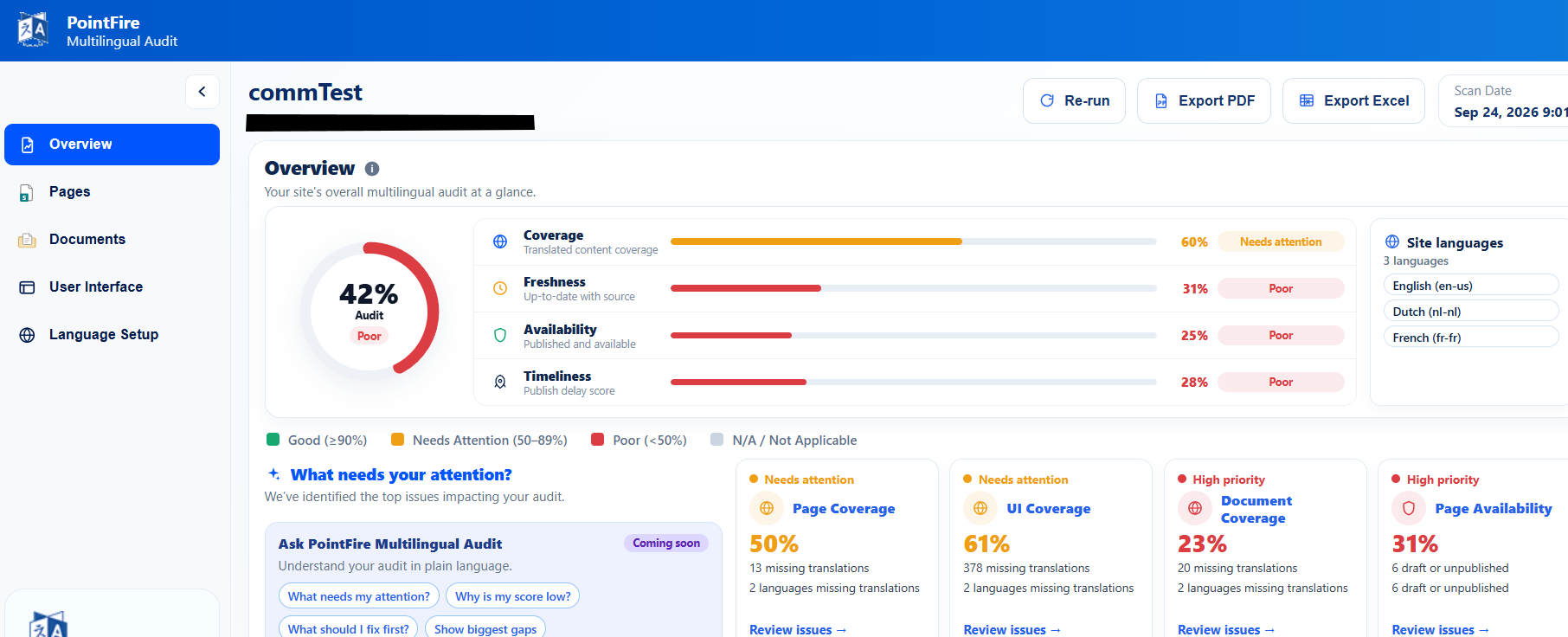
Content translation is more frequent and more dynamic. Pages, news, and documents are living things. They should be translated after the source is saved or published, reviewed appropriately, and re‑published when changes occur. Tools such as PointFire 365 help track these changes without forcing authors or owners to manually remember what needs re‑translation. PointFire’s “Recommended Actions” panel always knows what needs to be re-translated.
Translating the backlog after a decision is made to go multilingual is not the same things as translating new content as it is created. You have to determine how much resources to devote to translating obsolete old news and draft documents that no one reads. Right after you figure out why you are hosting obsolete old news and outdated drafts at all.
Build Translation Into Everyday Publishing
Organizations that succeed long‑term don’t treat translation as an exception—they treat it as part of publishing.
That often means a predictable sequence, for example: publishing the source, translating, reviewing, and then publishing everything together. Automation helps here, but human oversight remains essential, particularly for public‑facing or regulated content.
It’s also important to be explicit about expectations. Bilingual employees should not automatically be assumed to handle translation or quality assurance work unless that responsibility is clearly defined and supported. Even worse if the ability is presumed based on their ethnicity. Having an extra skill shouldn’t single out an employee for extra tasks that don’t contribute to their career.
Security
What happens if you want employees to translate pages and documents but you don’t provide machine translation? They will use unsecure options to translate your internal data. That could be free translation engines whose fine print says they can use your data, or solutions hosted by third party vendors or even inexpensive translation vendors whose security might be compromised. If you are subject to data residency requirements, will those solutions keep the storage and translation in your selected location? Will it be accessible only to the employees you give rights to?
Requiring translation without providing a secure method to carry it out is like leaving the outside door to your records room open.
Multilingual SharePoint Is a Living System
Finally, it’s worth remembering that multilingual SharePoint is never “done.”
Apps get updated, navigation evolves, content accumulates, and languages may expand. Periodic reviews of language tagging, navigation translation, and legacy content are part of keeping the environment healthy. Governance isn’t about control—it’s about continuity.
Closing Thoughts
Whether you use SharePoint’s native multilingual capabilities on their own or enhance them with PointFire 365 and PointFire Translator Express, success comes down to the same fundamentals.
Plan before you translate. Design for language, not just content. Assign clear roles. Treat multilingual publishing as an ongoing process, not a one‑time task.
Do that, and multilingual SharePoint stops feeling fragile—and starts feeling like a platform your whole organization can rely on.
Make Multilingual SharePoint Easier
You don’t have to solve all of this manually.
PointFire helps organizations manage multilingual SharePoint with less effort, better consistency, and fewer surprises.
- Simplify multilingual content management
- Keep translations aligned automatically
- Improve the search experience across languages
Book a demo to see how it works in your environment. Questions? Feel free to live chat with us or leave us a message.
You can try PointFire by downloading it here.
Make multilingual SharePoint easier.
Try PointFire in your own SharePoint environment and see how it works for your team.