What Is the SharePoint Search Engine? How SharePoint Search Really Works
What you'll learn
- Why SharePoint search behaves differently depending on where and who you are
- How Classic, Modern, and Copilot Search relate to each other under the hood
- What you can actually customize — and what you can't
- Where PnP Modern Search and PointFire fill the gaps Microsoft left
Is SharePoint Search Like Google or Bing?
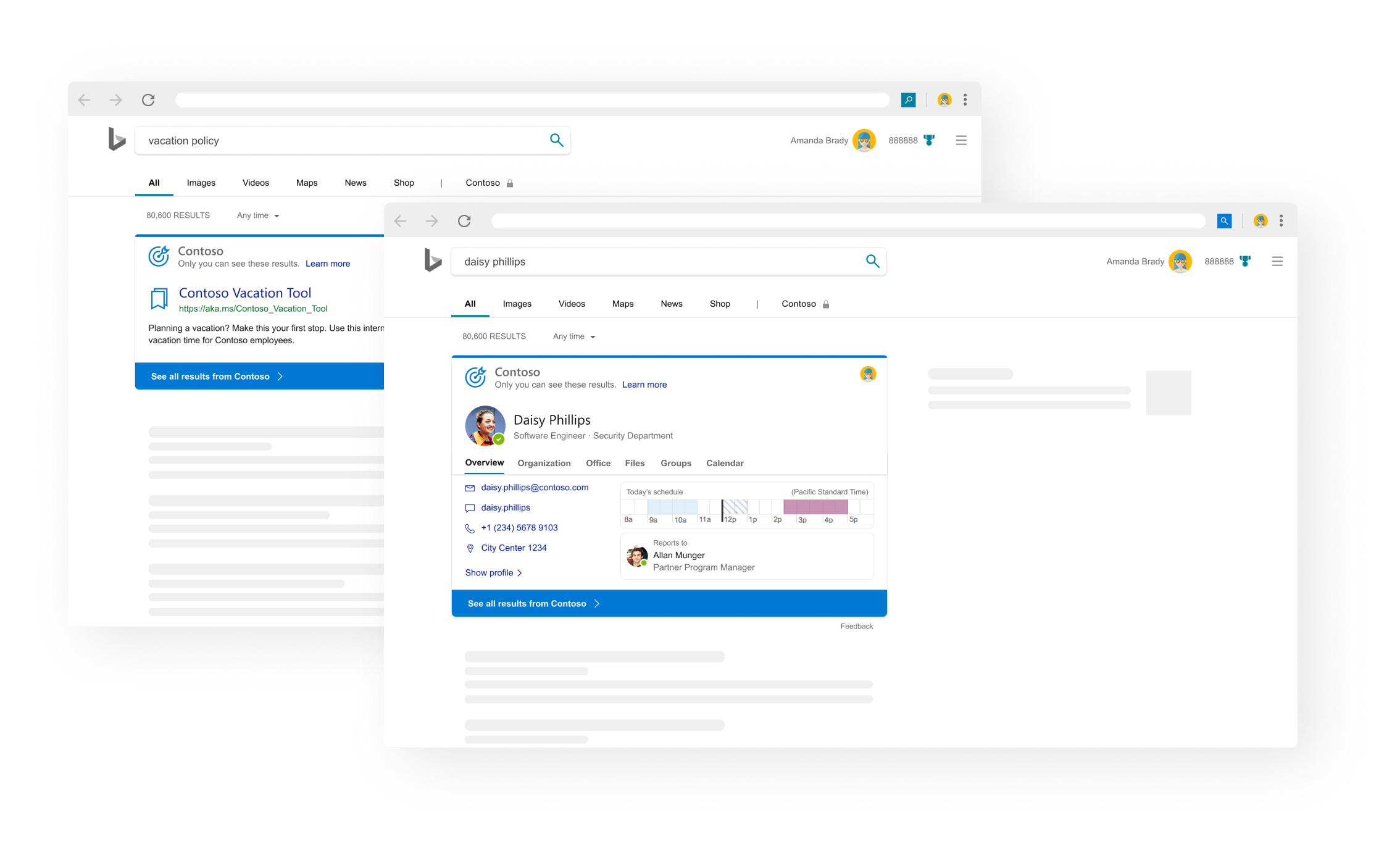
One answer is that it’s a bit more like Bing than Google, in fact at one point you could use Bing to search your SharePoint files, so close was the integration.
But the others answer is that it’s not like either of them because web search and enterprise search are very different, and you can’t expect to get the same type of search results. Web pages are carefully designed to be found, filled with keywords and hyperlinked. Search engine companies have unlimited computing resources, a team that can tweak the algorithm on a daily basis, no concern about access control or privacy, and can mine data about billions of searches. They have financial incentives to show you more of some types of results and less of others.
Enterprise search is meant to be more systematic and focused both on keywords and on metadata. For every search, you expect to see every single match, since the number is more manageable and no one is trying to game the system. But also you are sometimes searching for legal reasons or other reasons where there is a consequence for not finding all matching documents.
Web search finds things that are broadly similar to what you intended even if they don’t quite match. People have gotten accustomed to how web search engines work and then are surprised that SharePoint search doesn’t work the same way. In fact it has been working less and less like web search in recent years as search features are dropped. For instance if you put in the query "Where is Yvonne based?", if it worked like a web search engine, it would find you the results that answered your question, but instead SharePoint will give you a list of documents that contain all of the words "where", "is", "Yvonne", and "based" in the searchable text fields.
Key Characteristics of the SharePoint Search Engine

The first thing you need to know about SharePoint search functionality is that you will get different results depending where you are when you launch the search. If you search while in a library, you will get results from just that library. If you are within a folder, you will get results from just that folder. Elsewhere on a site, you will get results from the entire site, unless it’s a hub in which case results will be from any site in the hub. There are special search pages that search the entire tenant, and there are ways to extend your search to OneDrive and Outlook and elsewhere, and of course your admin can change all of that. If it’s a classic site or a classic page on a modern site, then the rules are all different.
The second thing is that different people will get different results. This is in part because of permissions: search will only show you what you are allowed to see. But the ranking of the results depends not only on how good is the match to the keywords but whether you work with the person who wrote the document. SharePoint search (modern search to be precise) looks at your org chart and the groups and teams you belong to in order to prioritize the people you know.
The third thing is that you might get different results depending on when you search. SharePoint search also prioritizes more recent and more popular documents. If a matching document has been opened by several people recently, that will affect its ranking. If you’ve been added to a group, documents by that group’s members will show up more often in your searches. This affects the ranking, not what is found.
If you've ever wondered why SharePoint search feels inconsistent or misses obvious results, the history below explains most of it — and PointFire Search Optimizer was built specifically to address the gaps that remain.
History of the SharePoint Search Engine (Classic, Modern, and AI Search)
Search has always been one of SharePoint’s most critical—and most complex—capabilities. From its early days as a basic keyword-matching tool to today, it has alternated between innovations to make it more configurable and changes to make it require less configuration.
FAST Search
FAST established SharePoint as a metadata-driven enterprise search engine, not a web-style search engine.
A major turning point in SharePoint’s search history came with Microsoft’s acquisition of FAST Search & Transfer in 2008. FAST was widely regarded as one of the most powerful enterprise search platforms available at the time. Microsoft integrated FAST technology into SharePoint, first as a separate, more complex product aimed at large enterprises, and later by merging FAST capabilities directly into the core SharePoint Search engine.
This integration brought significant improvements in scalability, relevance ranking, metadata handling, and linguistic processing—many of which still underpin SharePoint Search today. It included language detection and language-specific handling of keyword stemming, grammar, and stopwords. Stemming is a linguistic feature that improves search recall by matching different forms of the same word. For example, a search for “run” may also return results containing “running” or “ran”. It also included detailed handling of metadata: individual pieces of metadata, called “managed properties”.
It also helped move from scheduled indexing to immediate incremental indexing whenever content is added or changed.
Modern Search
Starting in 2016 in SharePoint Online and SharePoint 2019 on premise, “Modern Search” or “Microsoft Search” started replacing what was renamed Classic Search. It didn’t replace it everywhere, so the search results differed depending on the type of page. By and large, the search that is at the top of the page in the header bar is Modern search. Search became personalized, with results depending on who you are and your recent activity. However Modern search is much less customizable.
Modern Search still uses the old classic search index and most of its infrastructure. It has a single index, but now it adds to it data from OneDrive for Business, Teams, Outlook, and other M365 sources. When you customize search using the classic search admin center, it may affect Modern search as well, and even Copilot Search and other parts of Copilot, or it might not, depending whether modern search uses the feature. Very little is customizable in modern search and even less in Copilot search.
Copilot Search (SharePoint AI Search in Microsoft 365)
The Microsoft 365 Copilot Search functionality, announced in April 2025 provides a single entry point to search across all connected data sources, including over 100 connectors for third-party platforms. It has the same strengths and weaknesses of M365 Copilot in general, including the ability to find certain documents that don’t have matching keywords, the inability to find some despite having matching keywords, and search based on text alone, with limited use of metadata. Unlike Modern search, Copilot search is not scoped by default. It could retrieve text from anywhere on the tenant or even your Teams chats or your emails. When you introduce Copilot, you can be surprised that it finds documents and other text that users didn’t know they had access to, for example if they have no access to a site but do have access to some of the documents stored in that site.
A new upcoming version of Copilot was announced at Microsoft Ignite in 2025, with new search sources including previous Copilot chats, and more integration between search and actions resulting from search.
Like Modern Search, Copilot Search is also partly based on Classic SharePoint Search, but it adds to it a parallel search using semantic search. However any document excluded from indexing for classic search is automatically also excluded from being found by Copilot search and Copilot in general.
Copilot accesses SharePoint keyword search via the Graph API. Graph does not implement all the features of SharePoint search, and Copilot does not implement all the features of Graph. Notably absent are a lot of metadata usage, including site-level search schemas, many types of scopes, folder-level filtering, site-level aggregation, and custom ranking. That means that Copilot is not good at scoping or finding things using metadata, particularly custom metadata. It is good at finding things in unexpected places where you might not have thought to look.
SharePoint search has come a long way — but the gaps are still real. PointFire Search Optimizer adds AI-powered query rewriting and per-result relevance summaries to SharePoint search, so your team finds what they're actually looking for — with full transparency into why each result was returned. See it in action
Customizing the SharePoint Search Engine
Two components of search can be customized: indexing and retrieval.
Indexing in the SharePoint Search Engine
Indexing rules determine what content is indexed and how it is processed. These rules allow administrators to include or exclude specific paths, file types, or content sources, as well as metadata or managed properties.
By fine-tuning indexing rules, organizations can:
• Prevent irrelevant or low-value content from polluting search results
• Affect the ranking of results
• Allow refiners and verticals to be used
• Allow various types of customizations of the search retrieval.
Although designed for classic search, most of these configuration options are respected by Modern search and by Copilot.
Modern search and Copilot don’t allow much customization of their own, but since they use the Graph schema and not the Search schema, it is possible to indirectly affect the metadata that is available for use by Copilot, by adding to the Graph schema. Unfortunately, that can only be done programmatically.
PnP Modern Search
The best way to customize search querying and results is PnP Modern Search, a free community-supported app that allows you to use extensive customization capabilities in the search APIs, both SharePoint Classic search and Modern search.
This customization allows you to either improve general search or to create task-based search. For example, you want a page that lets you search for HR policies? A specific customized search will look in the relevant sites for the documents that have the right content types. Want a specific custom display template, for example specific information cards for clients, that contain the information that you need at a glance? PnP Modern Search can do all of that customization.
This is where PointFire Search Summarizer comes in. It’s an extension to PnP Modern Search that adds AI to the query, transforming it into the query that retrieves what you meant not what you said, and that uses AI to display the results with a summary of why that document is relevant. Unlike Copilot Search, with its trust-me black-box search that finds a limited number of results, this is full keyword-driven search, but with sophisticated search queries and time-saving explanations of why a document is relevant.
Conclusion
In short, SharePoint search has evolved from a basic keyword engine to a complex, multi-layered system. Modern Search and Copilot add personalization and AI capabilities, but they come with limitations—especially around scoping, metadata, and transparency. Organizations that rely on SharePoint for critical information often find that even with these enhancements, finding the right content quickly can still be a challenge.
That’s where PnP Modern Search—and extensions like PointFire Search Summarizer—make a real difference. By combining advanced query customization with AI-driven summaries, it bridges the gap between traditional keyword search and intelligent understanding of your content, helping you find the documents you need, exactly when you need them.
Ready to see smarter SharePoint search in action?
PointFire Search Optimizer improves SharePoint search with AI-powered query rewriting and relevance summaries. No Copilot license required.
Book a free 30-min demo or Download the free trial on AppSource
Keep reading: the full picture of how Microsoft search really works
- Copilot's Weak Spots Are Predictable — If You Know How It Searches. Copilot's failures aren't random. From unsupported file formats to metadata blind spots, this article maps exactly where the pipeline breaks down — and what you can do about it.
- Copilot's Other Large Language Model: The Hidden Search Pipeline Behind Every Answer. Most people think Copilot is just ChatGPT on your files. It's not — there are at least three separate LLMs working behind every query, and understanding them explains a lot about why Copilot behaves the way it does.
- PointFire Search Optimizer Adds Query Rewriting to Improve SharePoint Search. SharePoint search finds what you said, not what you meant. Query rewriting fixes that — automatically expanding acronyms, correcting typos, and interpreting natural language, with full transparency at every step.
Related Topics