What SharePoint Search Finds Beyond Exact Matches
Let's explore some of the lesser-known features of SharePoint and Microsoft Search that go beyond exact matching, as well as some examples of how the Search Optimizer, an extension to PnP Modern Search, improves your search queries to overcome the missing features.
In brief
SharePoint already matches grammatical forms and some regional spellings, but these features can also create accidental matches across languages. Search Optimizer's query examples add alternatives, proximity operators, and metadata filters to handle contextual vocabulary and natural-language requests: requiring related words to appear near each other can be more useful than finding them scattered throughout one document.
SharePoint’s search is often referred to as exact keyword matching only, compared to search engines like Google and Bing, but that's not quite true.
Let's explore some of the lesser-known features of SharePoint and Microsoft Search that go beyond exact matching, as well as some examples of how the Search Optimizer, an extension to PnP Modern Search, improves your search queries to overcome the missing features.
1. Morphological variants (stemming / inflection)
Morphology refers to the grammatical modifications to words. In most well-known languages, this means adding or changing the beginng or ending of a word, leaving the stem unchanged.
This is built‑in. SharePoint search performs stemming,meaning it looks for different forms of a word based on its stem and understands the possible prefixes and suffixes, including irregular forms, for instance, these searches will find these other forms of the word:
- run → running, ran
- manage → managing, management
- policy → policies
It does a generally good job especially in English. But it's not perfect. For example, if you search "alumnus" it finds "alumni" and vice-versa, but that does not work for correct but less common "alumna" and "alumnae". In other languages, it's hit or miss.
This is language‑aware: it depends on the language of the content, not necessarily the language of the user. This language-specific stemming is generally a good thing.
On the other hand, it can make the problem of accidental matches in other languages, so-called "false friends", worse. For example, if I search for "vise" (UK spelling for the tool), I get French documents with "visé" and Serbian and Croatian documents with " više", but for Scandinavian languages Iget stemming variants, like "vist" in Danish. In one instance, I got some Norwegian invoices, apparently triggered by the term "VISA". Visa is the infinitive of the verb viser, whose present tense is vise. In another instance, I was searching for a term that included "kind" and it matched a German document with "Kinder" (children). Did it go from "kind" to "kinder" in English, the UI language, or in German, the document language? Search is case insensitive even for German, where it probably shouldn't be. In fact, I've seen double language stemming, where a search for "kinds" (in English) finds "Kinderkrippe" (day care) in German. Only in English would it go from "kinds" to "kind", and the rest is done in German.
I️t is possible to disable stemming in queries in the SharePoint Search API but not in the KQL query or the Graph API.
2. Regional spelling variations
SharePoint search and Microsoft search are surprisingly good at finding things despite different regional spelling variants of words, atleast English words. For instance you can search for “labour” and “labor” interchangeably, "analyze" and"analyse", and “tire” and “tyre”. Even “kerb” and “curb”. There are many terms for which it does not find the spelling variants, like “vise” vs “vice”(the tool) or "all right" vs "alright"
PointFire optimizer tends to be explicit about including both spellings, especially for the less common spelling variations and for exact phrase search.
For example, "child labor" in quotes will be replaced by ("child labor" OR "child labour")
3. Regional word variations
Regional word variations is different from regional spelling and from synonyms. It is a different word that is more commonly used in a different region. SharePoint search has no support at all for this.
The Search Optimizer is generally aware of word variations and compensates for them by listing the original word and the more common alternatives separated with OR. For example, sneakers is replaced with sneaker OR "trainers" OR "athletic shoes"
See how it knows that sneaker can be singular and that SharePoint Search will handle pluralizing, while other terms are always plural, and the singular form or individual words "athletic" and "shoe" are not appropriate matches.
Arugula is changed to arugula OR rocket OR rucola
Gasoline is changed to gasoline OR (gasol* OR petrol OR fuel OR gas)
Elevator becomes 'elevator OR (lift OR hoist)'
In this last example, it gives the UK "lift", but also the term"hoist" which is a term used for a cargo elevator typically used during construction.
The term "Doona" is replaced with 'doona OR (duvet OR comforter OR "baby stroller" OR "infant car seat")' "Doona" is the Australian term for what Americans call a comforter and others call a duvet, but it is also a brand of infant car seats and strollers.
4. Implicit AND
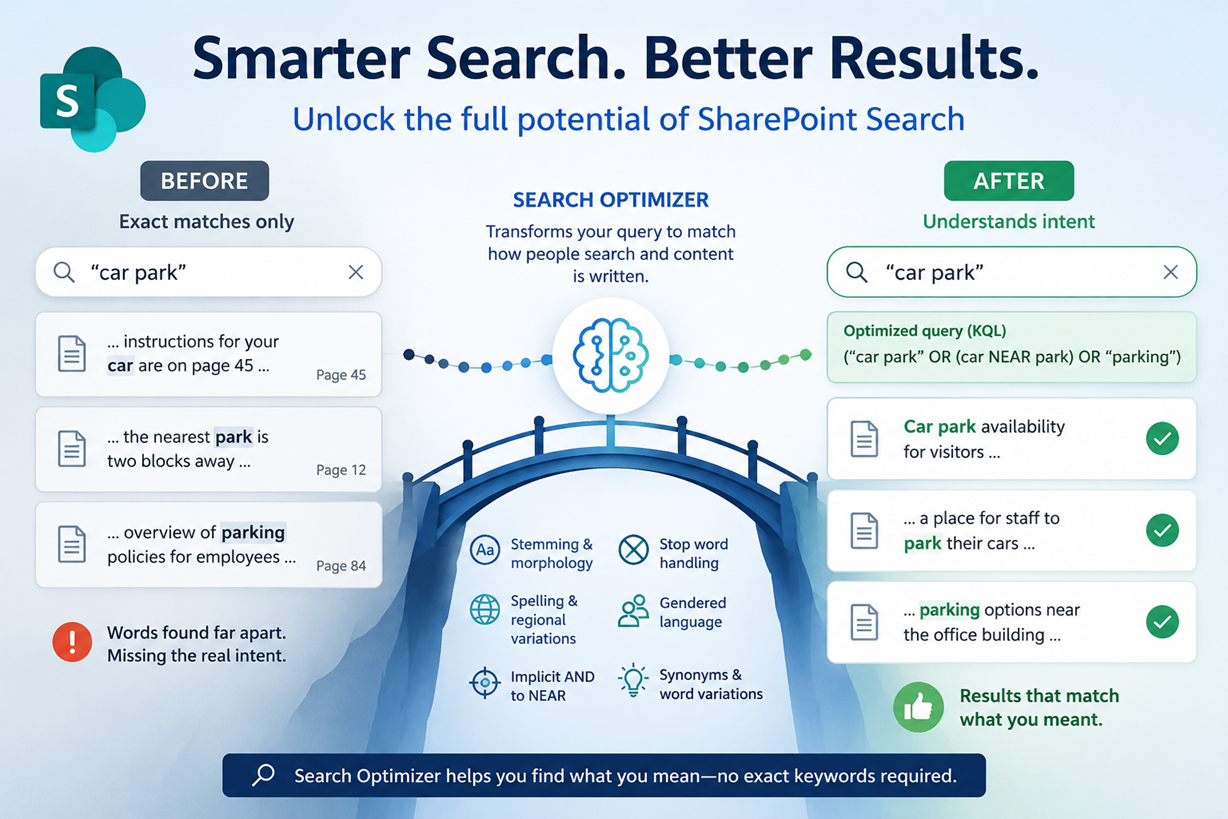
SharePoint doesn’t treat input as a single string—it breaks it into tokens (normalized words) and searches for those individually with an implicit AND between each. The problem with this is if you search for car park then it might find "car" on page 45 and "park" on page 12 and call it a match because both words are in the same document. Search Optimizer changes the query to
("car park" OR (car NEAR park) OR “parking”)
The effect of this is that it will accept either the exact match, or the words "car" and "park" if they are close to each other, for example "a place for staff to park their cars". Search optimizer does this a lot, turning implicitAND into "NEAR" where appropriate, or even KQL variants of NEAR like NEAR(3) or ONEAR.
5. Stop words
SharePoint Search does not remove stopwords from documents or queries. Stopwords are words that contain little semantic information, like "the, in, at". As a result, if you search for “Department of the Interior” it will insist that the words "of" and "the" have equal importance and not match "Interior Department" unless it also finds "of" and "the" somewhere in the document. The Search Optimizer will change the query to
("department of the interior" OR (department NEAR interior) OR (dept NEAR interior))
6. Gendered language
Many languages have gendered job names or gender rules that make it difficult to search for terms that have gender variants. SharePoint search does not a feature to overcome this, but Search summarizer does. For example, Search summarizer will replace fireman with (fireman OR firefighter) and replace waitress with (waitress OR waiter OR server) and chairman with (chairman OR chairwoman OR chair)
7. Spelling correction (“Did you mean?”)
SharePoint search in SharePoint Online does not have auto-correct or query suggestions for search like SharePoint on premise. What little there was, the “Did you mean?” functionality, was retired in Dec 2020. Instead, you can turn on the auto-complete suggestions, and the admin center has the ability to import a file containing query suggestions. This is not a very complete solution.
Search Optimizer has extensive spelling correction built in,and will search for both the original and the corrected version if there is likelihood that the perceived typo might have been intentional. Further, it's not just a word replacement; it uses context to determine what the intended word must have been.
For example, if you search for "acute angl", it will change "angl" to "angle", but if you search for"angl investor", it will change "angl" to"angel".
8. Synonyms — depending on configuration
SharePoint does not broadly infer synonyms like Google does.
On premise, you can enable synonyms through the thesaurus feature, but not in SharePoint Online. You can use Query Rules for a similar functionality, but this is only for promoted results.
Search optimizer tends to do intelligent replacement of synonyms, and of metonyms or hypernyms where appropriate. A hypernym is a broader term, while a metonym is a closely related term that represents the original term. For example it replaces
Car owner with (car OR automobile OR vehicle) NEAR (owner OR ownership OR registration OR title)'
Where a term can have several possible meanings, it picks the right one from context.
"Fall weather” is replaced with (fall OR autumn)
“Pride before a fall” is replaced with (fall or downfall OR comeuppance OR humbling)
9. Acronym expansion
You can define acronyms in the Search & Intelligence Center. This requires some work and maintenance, none of it is automatic. If you want "VP" to match "Vice President" you have to add it explicitly.
But what about when the same acronym has different senses in different contexts? Then you are out of luck. For example, MS can stand for Microsoft, for Multiple Sclerosis, for Master of Science, for Manuscript, for milliseconds, depending on context.
Search Optimizer usually figures out the proper context. Here are some examples
Shakespeare ms is replaced by
(Shakespeare NEAR ms) OR ("Shakespeare manuscript" OR"Shakespeare ms" OR "Shakespeare manuscripts")
MS Word is replaced by
(word AND filetype:docx) OR (Microsoft NEAR word)
MS diagnosis is replaced by
("multiple sclerosis" OR ms) AND (diagnosis OR diagnos*)
20 ms is replaced by
'"20ms" OR (20 NEAR ms) OR ("20 milliseconds" OR "20 millisecond")
10. Implied Metadata
There was a time when SharePoint search could interpret simple metadata queries. That functionality was turned off in SharePoint Online in July 2024
This is important because most users don't know how to query using metadata. They may not even know how to query against metadata and if they do, they probably don't know the proper syntax.
Here is an example of what Search Optimizer can do:
slide deck about security written by Martin in 2024
is changed to
(security OR secur*) AND filetype:pptx AND author:Martin AND Created:2024-01-01..2024-12-31
pdf about INADs that Stephanie changed in 2023
is changed to
(INAD) AND filetype:pdf AND author:Stephanie AND Modified:2023-01-01..2023-12-31
Note: an INAD is an inadmissible passenger. In the query it was pluralized, but it is generally singular even when there are more than one, and the Optimizer fixed that.
French document about MRTD
is changed to
DetectedLanguage:fr AND (MRTD OR "machine readable travel document" OR "machine-readable travel document") AND ContentType:Document
Conclusion
Search in SharePoint is more capable than many people realize. Features like stemming, spelling variations, acronym support, and tokenization already help users find relevant content without requiring exact matches. However, there are still significant gaps when it comes to synonyms, regional vocabulary, gendered language, contextual spelling correction, metadata inference, and many other aspects of natural language search.
Rather than replacing SharePoint Search, Search Optimizer builds on its existing strengths. By rewriting user queries into more expressive KQL, it bridges many of these gaps while remaining fully compatible with SharePoint and Microsoft Search. The result is a search experience that better understands how people naturally ask for information—without requiring users to learn complex search syntax or administrators to maintain extensive dictionaries and query rules.
As organizations continue to accumulate more content across languages, regions, and business domains, helping users express their intent becomes just as important as indexing the content itself. The best search experience isn't just about finding keywords—it's about understanding what the user actually meant.
Make multilingual SharePoint easier.
Try PointFire in your own SharePoint environment and see how it works for your team.